
Syncing to an External Calendar
Tasks and Activities which are created in Winmore can easily be exported and kept in sync for viewing in the calendar app of your choice.
Please note that the sync is one-way only. This means that all changes you make in Winmore will show up in your external calendar, but changes in your external calendar will not show up in Winmore. To close out an activity or record call notes, you’ll need to log into Winmore.
Also please note that the sync schedule is determined by settings in your external calendar app. MS Calendar defaults to every 30 minutes, so you may not see updated information in your external calendar until the next scheduled sync.
You can sync to Microsoft Calendar, Google Calendar, or Apple Calendar. Once the connection to your calendar is set up, all Tasks and Activities will automatically be kept up to date in your external application.
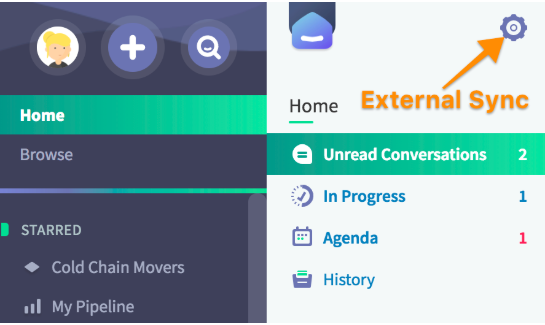
Click on the gear icon in Home to open the menu and select your desired destination.
Syncing to Microsoft Outlook Calendar
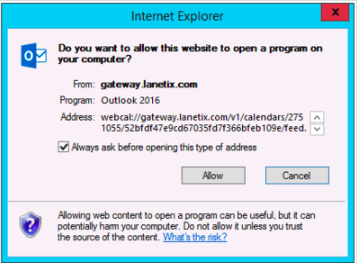
Choose Microsoft Outlook from the menu. A message from your internet browser may appear to allow the program. If so, click "Allow" to accept.
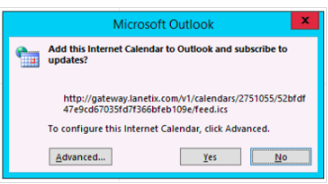
A connection dialog will be opened on your screen which asks you to accept the connection to your calendar app. Click "Yes" to accept.
A new calendar called "Untitled" will appear in your Outlook. We recommend that you rename the calendar to "Winmore". Now your calendar is connected and you can track updates to Tasks via email or other notifications available in your calendar app.
Syncing to Google Calendar
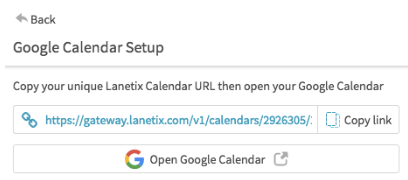
Copy the link that’s listed in blue in the settings window by clicking “Copy Link” button. Then open your Google Calendar with the button at the bottom. You’ll need to log in to your Google account first.
On the left side of your Google Calendar, find "Other calendars" and click the down arrow. Then select "Add by URL."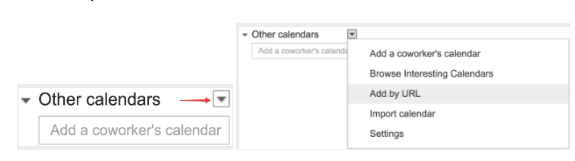
Paste your unique Winmore Calendar URL address in the field provided.
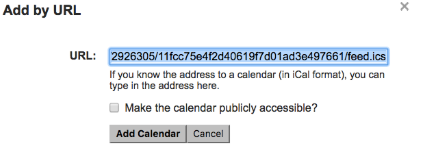
Click "Add calendar." The calendar will appear on the left side under "Other calendars."
Note: It might take up to 12 hours for changes to show in your Google Calendar.
Syncing to Apple Calendar
Choose Apple Calendar from the menu. A connection dialog will be opened on your screen which asks you to subscribe to the Winmore calendar. Click "Subscribe" to accept.
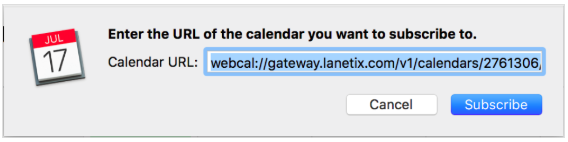
Now your calendar is connected and you can track updates to Tasks via email or other notifications available in your calendar app.
Manual Sync
If you are using a calendar that’s not listed, you may export an .ics file by choosing “Other” from the menu. Note that this method will not keep your external calendar in sync automatically, and needs to be repeated manually to update your calendar from changes in Winmore.

Comments
0 comments
Article is closed for comments.