
Completing Tasks
Tasks for the Bid Management Workflow are completed to move the bid throughout the RFP process. Assigned tasks will appear in users’ Home menus or from the Bid record’s workflow overview screen.
The workflows are currently configured with several best practice tasks. You can Assign the tasks and set due dates from the workflow overview screen.
To complete the task, click into and complete the content on the task modal screen. You may be asked to fill in text fields, number fields, dropdown fields, log an activity, upload a file, etc. The fields will save automatically as you fill them in. Once completed, you can click the "Complete" button in the upper right hand corner.
Note: There may be required fields that must be completed before the task can be closed. Additionally a task cannot be closed if it has any open To-Do Items associated with it.
Once tasks are assigned to a user, they can also access them through Home. This centralized activity center is separated into four sub-menus to allow you to easily hone-in on new or upcoming information. Those four sub-menus are:
- Unread Conversations: Allowing you a quick glance and what’s been happening while you were away!
- In Progress: showing tasks/activities that are past due, due in the current week or without a due date.
- Agenda: showing all tasks/activities with a due date and by date order, including all upcoming items.
- History: showing all previously completed tasks and activities.
Auto hide skipped tasks
Currently, as part of the workflow, users have the ability to manually hide tasks. Additionally, there is the capability to generate automation to skip tasks. This automation wasn’t hiding the tasks that have been manually skipped. This enhancement aims to address this requirement.
Feature Overview
With this enhancement, automation can now hide tasks that have been manually skipped. This functionality will remove these tasks from the user interface, thereby reducing confusion and eliminating unnecessary processing related to the skipped tasks.
Feature Enablement
This feature requires specific enablement from your Winmore support specialist. Please contact Winmore if you have any questions or concerns.
Example: If the tender Mode is FCL , system will automatically hide the tasks for Air and LCL in the tender management Workflow
Task To-Dos
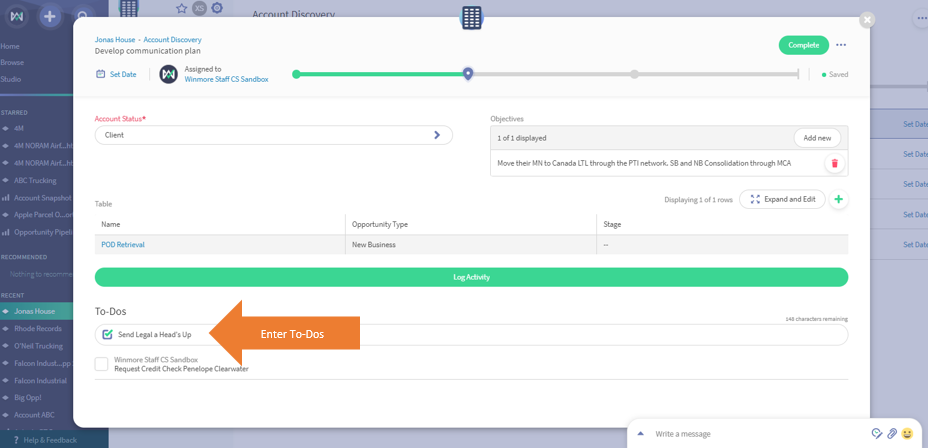
You can add To-Dos to a specific Task. This is an ad-hoc task that can be assigned to other users and can be clicked as complete. You can enter multiple To-Dos on a task and they will appear in the In Progress / Agenda menus for you as the creator as well as for any users with which you've shared them.
Remember that a task cannot be completed until the To-Do has been checked complete. For more information on To-Dos, please check out this article or this short video.


Comments
0 comments
Please sign in to leave a comment.